

Social Feed
Not sure how many of the group here uses the DirecTV app on a iOS ipad or iphone. I use the app to change the channels on several receivers tucked away in a separate part of the house. Over the past several days I have noticed the app does not show any of the receivers on the network.
I have done my troubleshooting, they all have a valid IP address and each receiver has been refreshed. When I look at the router and each receiver the ip addresses are the same. I have power cycled the DECA's and IP connections.
When I enter the IP address and validate for each receiver on the DirecTV app the app will control the receiver as it supposed to control. But when the app is closed the app loses the settings for the receivers that I entered.
I contacted DirecTV CSR's and they transferred me to several departments with no success.
This issue is likely a coding issue on the update DirecTV updated recently.
Im wondering if any other users are experiencing the same issue.
Technical info:
Ipad Pro with iOS 14.5
DirecTV app version 5.25.504
The receivers range from a Genie to a HR24.
Its impacting the ability to watch my wall of monitors
Thanks to all!
I have done my troubleshooting, they all have a valid IP address and each receiver has been refreshed. When I look at the router and each receiver the ip addresses are the same. I have power cycled the DECA's and IP connections.
When I enter the IP address and validate for each receiver on the DirecTV app the app will control the receiver as it supposed to control. But when the app is closed the app loses the settings for the receivers that I entered.
I contacted DirecTV CSR's and they transferred me to several departments with no success.
This issue is likely a coding issue on the update DirecTV updated recently.
Im wondering if any other users are experiencing the same issue.
Technical info:
Ipad Pro with iOS 14.5
DirecTV app version 5.25.504
The receivers range from a Genie to a HR24.
Its impacting the ability to watch my wall of monitors
Thanks to all!
8 Replies
·
4747 views


Supporting Founder
Really excited for this season with Kentucky having a new coach and some really exciting recruits. Probably won't last long, but here's hoping this season is great.
141 Replies
·
1335 views


Supporting Founder
Lifetime Supporter
This thread is a place to discuss the 4K events that appear on channel 540. We are getting, at this point, one college football game a week. Let's hope there is more coming.
1931 Replies
·
298829 views


TWiT Tech Podcast Network
Time for another AWESOME video from the TWIT Network!
View: https://www.youtube.com/watch?v=87N42NxLPC0
Direct YouTube Link - 8 U.S. States Sue OpenAI Over Safety Concerns With Younger Users
TWIT's Website
TWIT Live Feed
View: https://www.youtube.com/watch?v=87N42NxLPC0
Direct YouTube Link - 8 U.S. States Sue OpenAI Over Safety Concerns With Younger Users
TWIT's Website
TWIT Live Feed
0 Replies
·
5 views

Pub Member / Supporter
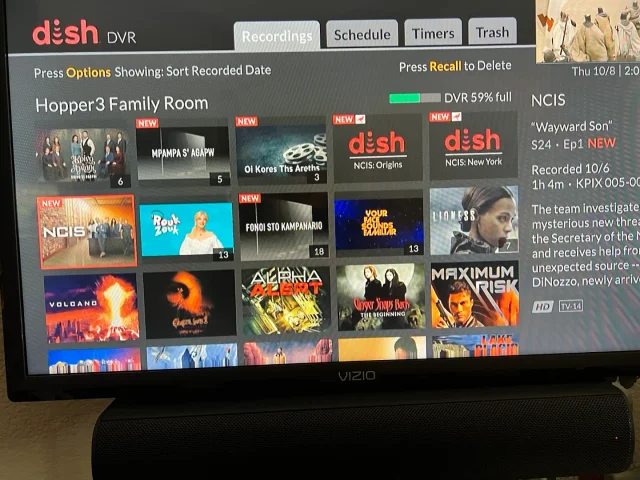
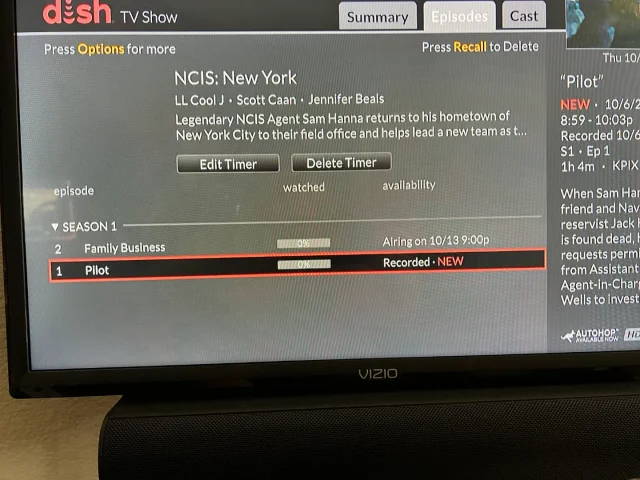
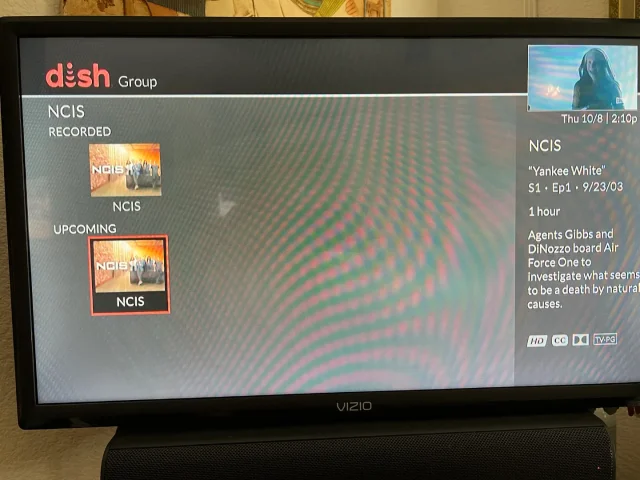
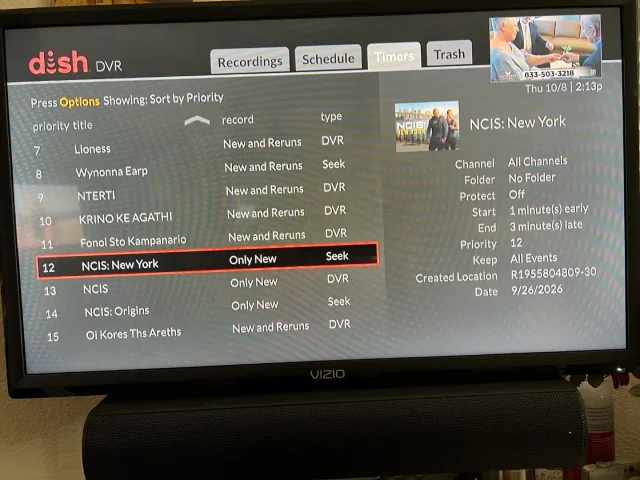
On Tuesday, I recorded the first episodes of the new season's NCIS shows on CBS (Dish provided, not OTA). The new New York series and Origins will both do Auto Skip, but the original, now season 24 does not. What's stranger, when I do a search for NCIS, Origins and New York show the current recording and the next episode it will record, but the original show only shows the current recording and some other channel showing the very first episode of season one. It makes no sense. When I set up the timers, I was able to use search for Origins and New York, but for the original, I had to scroll ahead in the guide until last Tuesday when the show was airing. Then set the timer from there. You can see its timer type is DVR where the other two are Seek. What am I missing?
Thanks!
Thanks!
20 Replies
·
376 views


Pub Member / Supporter
Cutting Edge
I created this thread on the original Edgecutter Cutting Edge Forums site. It's simply a place for those to review the latest software available for those using Windows 10 and Windows 11. To date it has received 112,559 views. I have been asked by staff to continue this thread here.
520 Replies
·
47161 views



Staff member
HERE TO HELP YOU!
Hard getting used to the new younger Gibbs, Mark Harmons son had the right look but I understand he didn't want the role.
Still I'm enjoying, pretty good job with Franks.
Still I'm enjoying, pretty good job with Franks.
66 Replies
·
4205 views

Pub Member / Supporter
0 Replies
·
13 views

Staff member
HERE TO HELP YOU!
Cutting Edge
Sometimes a thread gets so many posts in it that is can cause issues for the server so that why today we introduce The Song Name Game Part 3!
So let the game continue!
The last song was added by Bobby who posted...
One Meat Ball - Andrews Sisters
CONTINUE ON AND HAVE FUN! WELCOME HOME TO SATELLITEGUYS.US!
Here are the original rules for the game as posted by WebbyDude back in 2006. http://www.satelliteguys.us/threads/68645-Song-Name-Game
Just name a song title and the band who performed it. The next person does the same thing, but needs to list a song title or band name which includes a word from the previous entry. Pick songs from any genre.
Example:
Long Live Rock and Roll -- Rainbow
Rainbow in the Dark -- Dio
Another example:
Ride the Lightning -- Metallica
Lightning Strikes -- Ozzy Osbourne
Get it?
An additional note: we all know that song titles, sometimes, use profane words. Because this is a family friendly website it is advised that you clean up that title up a bit. This is accomplished by using something like sh!t instead of the real word. Thanks....
So let the game continue!
The last song was added by Bobby who posted...
One Meat Ball - Andrews Sisters
CONTINUE ON AND HAVE FUN! WELCOME HOME TO SATELLITEGUYS.US!
Here are the original rules for the game as posted by WebbyDude back in 2006. http://www.satelliteguys.us/threads/68645-Song-Name-Game
Just name a song title and the band who performed it. The next person does the same thing, but needs to list a song title or band name which includes a word from the previous entry. Pick songs from any genre.
Example:
Long Live Rock and Roll -- Rainbow
Rainbow in the Dark -- Dio
Another example:
Ride the Lightning -- Metallica
Lightning Strikes -- Ozzy Osbourne
Get it?
An additional note: we all know that song titles, sometimes, use profane words. Because this is a family friendly website it is advised that you clean up that title up a bit. This is accomplished by using something like sh!t instead of the real word. Thanks....
68494 Replies
·
2670373 views


Pub Member / Supporter
Lifetime Supporter
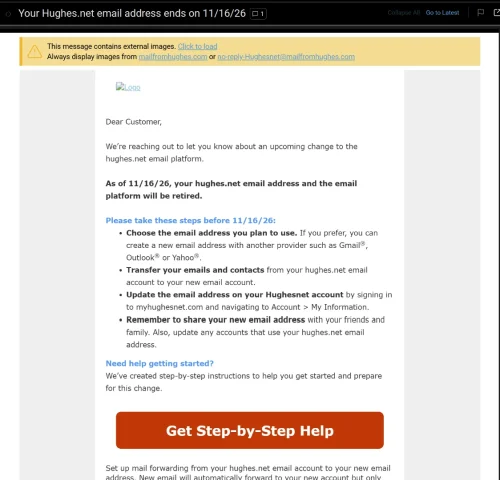
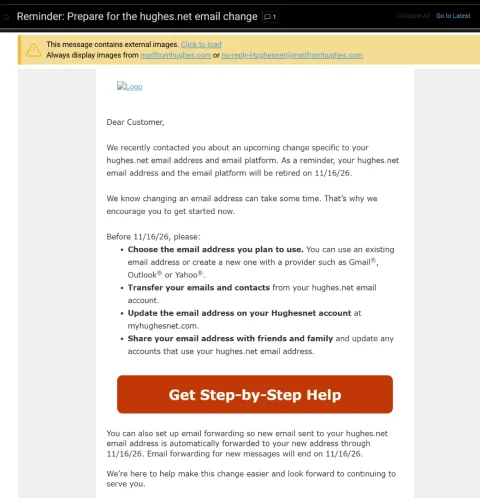
Wasn't exactly sure where to post this. Just had a customer come in inquiring about internet. He has HughesNet and had heard good things about mine. He asked if we provided email addresses and it kinda caught me off guard. I said he should be able to keep whatever email he had been using....my sister in law is still using a BellSouth email addy and they haven't been around here for many years. He said he had gotten a letter from HughesNet stating that they had until Nov 16th to save, move, forward, whatever, their Hughesnet emails because they would lose them after that date.
I have never heard of a company simply mass-deleting email accounts (the customer still has his HughesNet service). From what I understand, in the past, the company who was ditching their email service simply sold the customer base to a company like Google.
Anyone else getting this letter. He said he would show it to me tomorrow when I go out there and set up his internet.
I have never heard of a company simply mass-deleting email accounts (the customer still has his HughesNet service). From what I understand, in the past, the company who was ditching their email service simply sold the customer base to a company like Google.
Anyone else getting this letter. He said he would show it to me tomorrow when I go out there and set up his internet.
7 Replies
·
120 views



Lifetime Supporter
Starting a thread klang !
After an amazing first 2 seasons and an 8 episode 3rd season still coming this year, season 4 has now been greenlit.

After an amazing first 2 seasons and an 8 episode 3rd season still coming this year, season 4 has now been greenlit.
9 Replies
·
934 views


