

Social Feed
i had a problem with my AZBox HD Premium which was that when i try to do anything in setup section a the receiver asks me about the password which i don't have
some told me that the password is "0000" but it didn't work with me and some suggested to upgrade the firmware and i have upgraded the firmware to 0.9.4931 successfully
but when i went to the setup screen and tried to do anything
the receiver asked me about the password again and when i typed "0000" nothing changed at all
guys,
i'd ask u something else beside my problem
i wonna u tell me how to do anything in the setup section step-by-step and i wonna u c if my way is correct or not
i press the blue button (home) then i go to number 9 which is (sitting) and press (OK) button. -then "please wait..." appears to me for about five minutes then unfortunately an error message comes out to me says (Fail to receive data err=-1)-
after that i press (OK) button then press the (Right) button and press (OK) button *in this moment a message comes and asks me about the password* of course i type 0000 then "OK" button
then it brings me back to the left bar with no changes
(i wrote all of this just to make sure that i'm doing the right thing and to show u what i'm doing to find out a solution)
so, is there a solution for the password (to remove it, change it, or to know it)???
and what's that error??? and what's the solution???
for information that the internet cable was plugged in ane the satellite cable too
i'm waiting for ur respond
some told me that the password is "0000" but it didn't work with me and some suggested to upgrade the firmware and i have upgraded the firmware to 0.9.4931 successfully
but when i went to the setup screen and tried to do anything
the receiver asked me about the password again and when i typed "0000" nothing changed at all
guys,
i'd ask u something else beside my problem
i wonna u tell me how to do anything in the setup section step-by-step and i wonna u c if my way is correct or not
i press the blue button (home) then i go to number 9 which is (sitting) and press (OK) button. -then "please wait..." appears to me for about five minutes then unfortunately an error message comes out to me says (Fail to receive data err=-1)-
after that i press (OK) button then press the (Right) button and press (OK) button *in this moment a message comes and asks me about the password* of course i type 0000 then "OK" button
then it brings me back to the left bar with no changes
(i wrote all of this just to make sure that i'm doing the right thing and to show u what i'm doing to find out a solution)
so, is there a solution for the password (to remove it, change it, or to know it)???
and what's that error??? and what's the solution???
for information that the internet cable was plugged in ane the satellite cable too
i'm waiting for ur respond
6 Replies
·
7344 views


Staff member
HERE TO HELP YOU!
Cutting Edge
Sometimes a thread gets so many posts in it that is can cause issues for the server so that why today we introduce The Song Name Game Part 3!
So let the game continue!
The last song was added by Bobby who posted...
One Meat Ball - Andrews Sisters
CONTINUE ON AND HAVE FUN! WELCOME HOME TO SATELLITEGUYS.US!
Here are the original rules for the game as posted by WebbyDude back in 2006. http://www.satelliteguys.us/threads/68645-Song-Name-Game
Just name a song title and the band who performed it. The next person does the same thing, but needs to list a song title or band name which includes a word from the previous entry. Pick songs from any genre.
Example:
Long Live Rock and Roll -- Rainbow
Rainbow in the Dark -- Dio
Another example:
Ride the Lightning -- Metallica
Lightning Strikes -- Ozzy Osbourne
Get it?
An additional note: we all know that song titles, sometimes, use profane words. Because this is a family friendly website it is advised that you clean up that title up a bit. This is accomplished by using something like sh!t instead of the real word. Thanks....
So let the game continue!
The last song was added by Bobby who posted...
One Meat Ball - Andrews Sisters
CONTINUE ON AND HAVE FUN! WELCOME HOME TO SATELLITEGUYS.US!
Here are the original rules for the game as posted by WebbyDude back in 2006. http://www.satelliteguys.us/threads/68645-Song-Name-Game
Just name a song title and the band who performed it. The next person does the same thing, but needs to list a song title or band name which includes a word from the previous entry. Pick songs from any genre.
Example:
Long Live Rock and Roll -- Rainbow
Rainbow in the Dark -- Dio
Another example:
Ride the Lightning -- Metallica
Lightning Strikes -- Ozzy Osbourne
Get it?
An additional note: we all know that song titles, sometimes, use profane words. Because this is a family friendly website it is advised that you clean up that title up a bit. This is accomplished by using something like sh!t instead of the real word. Thanks....
68534 Replies
·
2673165 views


TWiT Tech Podcast Network
Time for another AWESOME video from the TWIT Network!
View: https://www.youtube.com/shorts/A_V4A_ne8wE
Direct YouTube Link - "You Can See Everything" Is 1 of the Century's Best #shorts
TWIT's Website
TWIT Live Feed
View: https://www.youtube.com/shorts/A_V4A_ne8wE
Direct YouTube Link - "You Can See Everything" Is 1 of the Century's Best #shorts
TWIT's Website
TWIT Live Feed
0 Replies
·
2 views


Staff member
HERE TO HELP YOU!
We have a Breakfast and Dinner thread so... 
Continuing from the Breakfast thread, found Cornbread mix so ...
Yellow Cornbread Mix
2 Hatch Green Chiles -diced
1 Egg
2/3 cup of milk
add to greased pan
Bake for 400f 20-25 minutes(From instructions)
now to put together and try... this to go with pinto beans...
Continuing from the Breakfast thread, found Cornbread mix so ...
Yellow Cornbread Mix
2 Hatch Green Chiles -diced
1 Egg
2/3 cup of milk
add to greased pan
Bake for 400f 20-25 minutes(From instructions)
now to put together and try... this to go with pinto beans...
5446 Replies
·
335509 views


Staff member
HERE TO HELP YOU!
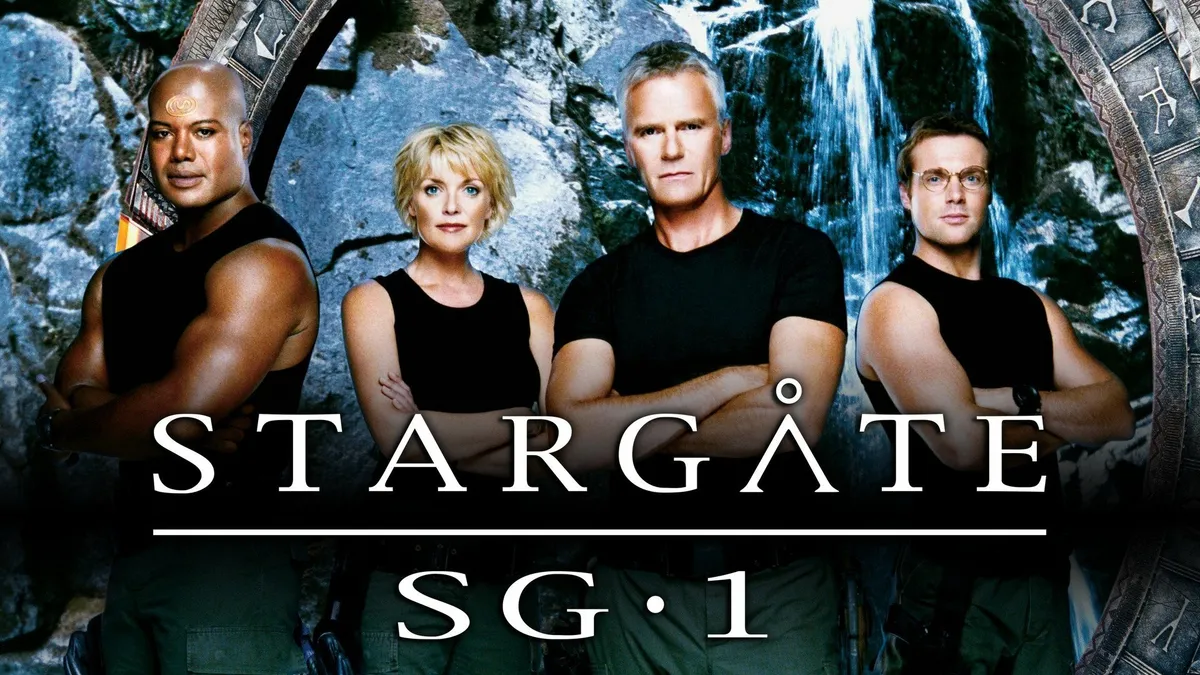
Stargate SG-1 cancelled, Atlantis renewed

Monday - August 21, 2006 | by Darren Sumner
The future of Stargate is in question today, as SCI FI Channel has cancelled the long-running Stargate SG-1, Multichannel News reported today and a GateWorld source has confirmed. The news regrettably follows the airing of the show's milestone two-hundredth episode on Friday.
Stargate Atlantis, meanwhile, has been renewed for a fourth season, with the network hoping to see that the spin-off series can stand alone, according to a source.
Source Gateworld
Monday - August 21, 2006 | by Darren Sumner
The future of Stargate is in question today, as SCI FI Channel has cancelled the long-running Stargate SG-1, Multichannel News reported today and a GateWorld source has confirmed. The news regrettably follows the airing of the show's milestone two-hundredth episode on Friday.
Stargate Atlantis, meanwhile, has been renewed for a fourth season, with the network hoping to see that the spin-off series can stand alone, according to a source.
Source Gateworld
2032 Replies
·
183990 views


TWiT Tech Podcast Network
Time for another AWESOME video from the TWIT Network!
View: https://www.youtube.com/watch?v=beerzKBCSUo
Direct YouTube Link - Elon Musk's Wildest Demo Yet! Is It Real?
TWIT's Website
TWIT Live Feed
View: https://www.youtube.com/watch?v=beerzKBCSUo
Direct YouTube Link - Elon Musk's Wildest Demo Yet! Is It Real?
TWIT's Website
TWIT Live Feed
0 Replies
·
9 views
Supporting Founder
Lifetime Supporter
This is a thread that will keep you apprised of 4K events that will be showing on Dish channel 540. Keep looking here for information.
As of today, 9-27-17, there are no scheduled events posted for the next 2 weeks. That is subject to change on a daily basis.
As of today, 9-27-17, there are no scheduled events posted for the next 2 weeks. That is subject to change on a daily basis.
762 Replies
·
167227 views

 . Hated to see my dawgs go down but I still say being ranked #1 is a hex on you!
Season 2 order already in hand:
'Star Trek: Starfleet Academy' Renewed for Season 2, Tatiana Maslany to Guest Star in Season 1
I've not been optimistic about this show based on what I've read so far. Seems to be aimed at a younger audience. Interesting though that Tatiana Maslany will have some sort of role.
'Star Trek: Starfleet Academy' Renewed for Season 2, Tatiana Maslany to Guest Star in Season 1
I've not been optimistic about this show based on what I've read so far. Seems to be aimed at a younger audience. Interesting though that Tatiana Maslany will have some sort of role.
83 Replies
·
3302 views

