

Social Feed

Supporting Founder
Pub Member / Supporter
I have a Surface Pro with Win 8 pro installed. I would like to se it up to have a virtual PC running windows XP, similar to how I have it on my win 7 pro desktop. I understand that this has been disabled in windows 8.
But for Windows 8 Professional, there is a different version that is supposed to achieve the same goal. In fact there are several ways to achieve a windows XP running on top of windows 8. But I have been unsuccessful of getting any of them to work.
I have tried to install using Hyper V and VMware Virtual Box. I can't get HyperV to recognize windows XP install at all. Virtual Box seemes to recognize the windows XP install and I achieved the basic desktop screen however, I have no mouse control although I do have keyboard control. The mouse pointer disappears when floating inside the Virtual Win XP desktop. I've tried the mouse touch pad as well as the attachable keyboard and neither work.
There is a third way to run windows XP as a dual boot but this is less desirable than having both win8 and win xp working at the same time like I do in windows 7. I haven't tried this procedure yet as I want to exhaust the other methods first.
There are a number of You Tube videos posted on the different ways to run winXP inside of win8 on the Surface Pro but these instructionals really difficult to follow, full of errors, speaker is not in English, or talks like a street hypster.
VMware virtual box seems to have gotten me the closest to my goal if I can get the mouse to work.
But there is an additional problem. When this installed the downloaded windows XP, it said I have 30 days free and then need to buy it from Microsoft and install the key. Of course this wasn't mentioned in the video. Can I use any of my older key's from XP or is the key for XPMode different? On windows 7, I just used an old copy of windows XP I had and it installed fine. But that was a couple years ago.
I'm not against buying a license to run XPMode, or some utility, reasonably priced, if it streamlines the process of getting this to work.
But for Windows 8 Professional, there is a different version that is supposed to achieve the same goal. In fact there are several ways to achieve a windows XP running on top of windows 8. But I have been unsuccessful of getting any of them to work.
I have tried to install using Hyper V and VMware Virtual Box. I can't get HyperV to recognize windows XP install at all. Virtual Box seemes to recognize the windows XP install and I achieved the basic desktop screen however, I have no mouse control although I do have keyboard control. The mouse pointer disappears when floating inside the Virtual Win XP desktop. I've tried the mouse touch pad as well as the attachable keyboard and neither work.
There is a third way to run windows XP as a dual boot but this is less desirable than having both win8 and win xp working at the same time like I do in windows 7. I haven't tried this procedure yet as I want to exhaust the other methods first.
There are a number of You Tube videos posted on the different ways to run winXP inside of win8 on the Surface Pro but these instructionals really difficult to follow, full of errors, speaker is not in English, or talks like a street hypster.
VMware virtual box seems to have gotten me the closest to my goal if I can get the mouse to work.
But there is an additional problem. When this installed the downloaded windows XP, it said I have 30 days free and then need to buy it from Microsoft and install the key. Of course this wasn't mentioned in the video. Can I use any of my older key's from XP or is the key for XPMode different? On windows 7, I just used an old copy of windows XP I had and it installed fine. But that was a couple years ago.
I'm not against buying a license to run XPMode, or some utility, reasonably priced, if it streamlines the process of getting this to work.
17 Replies
·
1915 views


TWiT Tech Podcast Network
Time for another AWESOME video from the TWIT Network!
View: https://www.youtube.com/shorts/z72cjoZP83E
Direct YouTube Link - AI Can Self-Replicate: Unplugging the Threat! #shorts
TWIT's Website
TWIT Live Feed
View: https://www.youtube.com/shorts/z72cjoZP83E
Direct YouTube Link - AI Can Self-Replicate: Unplugging the Threat! #shorts
TWIT's Website
TWIT Live Feed
0 Replies
·
9 views
TWiT Tech Podcast Network
Time for another AWESOME video from the TWIT Network!
View: https://www.youtube.com/shorts/w5TOILSc_U8
Direct YouTube Link - AI Model Poisoning: The Hidden Threat on Hugging Face #shorts
TWIT's Website
TWIT Live Feed
View: https://www.youtube.com/shorts/w5TOILSc_U8
Direct YouTube Link - AI Model Poisoning: The Hidden Threat on Hugging Face #shorts
TWIT's Website
TWIT Live Feed
0 Replies
·
6 views

Staff member
HERE TO HELP YOU!
Cutting Edge
Sometimes a thread gets so many posts in it that is can cause issues for the server so that why today we introduce The Song Name Game Part 3!
So let the game continue!
The last song was added by Bobby who posted...
One Meat Ball - Andrews Sisters
CONTINUE ON AND HAVE FUN! WELCOME HOME TO SATELLITEGUYS.US!
Here are the original rules for the game as posted by WebbyDude back in 2006. http://www.satelliteguys.us/threads/68645-Song-Name-Game
Just name a song title and the band who performed it. The next person does the same thing, but needs to list a song title or band name which includes a word from the previous entry. Pick songs from any genre.
Example:
Long Live Rock and Roll -- Rainbow
Rainbow in the Dark -- Dio
Another example:
Ride the Lightning -- Metallica
Lightning Strikes -- Ozzy Osbourne
Get it?
An additional note: we all know that song titles, sometimes, use profane words. Because this is a family friendly website it is advised that you clean up that title up a bit. This is accomplished by using something like sh!t instead of the real word. Thanks....
So let the game continue!
The last song was added by Bobby who posted...
One Meat Ball - Andrews Sisters
CONTINUE ON AND HAVE FUN! WELCOME HOME TO SATELLITEGUYS.US!
Here are the original rules for the game as posted by WebbyDude back in 2006. http://www.satelliteguys.us/threads/68645-Song-Name-Game
Just name a song title and the band who performed it. The next person does the same thing, but needs to list a song title or band name which includes a word from the previous entry. Pick songs from any genre.
Example:
Long Live Rock and Roll -- Rainbow
Rainbow in the Dark -- Dio
Another example:
Ride the Lightning -- Metallica
Lightning Strikes -- Ozzy Osbourne
Get it?
An additional note: we all know that song titles, sometimes, use profane words. Because this is a family friendly website it is advised that you clean up that title up a bit. This is accomplished by using something like sh!t instead of the real word. Thanks....
68495 Replies
·
2670641 views


Supporting Founder
Several Dish offers showed up today in my account. Once you choose one the rest are removed. Offers were Showtime, Starz, AMC and others.
32 Replies
·
1568 views


Pub Member / Supporter
Cutting Edge
I created this thread on the original Edgecutter Cutting Edge Forums site. It's simply a place for those to review the latest software available for those using Windows 10 and Windows 11. To date it has received 112,559 views. I have been asked by staff to continue this thread here.
521 Replies
·
47207 views



For some reason, the satelliteguys.us site is loading a lot slower than usual on both Chrome on my Asus laptop and Safari on my iPhone.
I'm also seeing longer appearances of the blue bar at the top and the "3 blue bars" loading symbol.
Is anyone else also having the same problem? Thanks in advance.
I'm also seeing longer appearances of the blue bar at the top and the "3 blue bars" loading symbol.
Is anyone else also having the same problem? Thanks in advance.
527 Replies
·
17931 views


Help, I'm a little confjused on the activation process.
I purchased the Joey 4 from Solid Signal and shipping box has Call 866 726-4282 to Avtivate new Receiver. That number is Solid Signals number.
I googled and that search said call Dish to activate. I assume that is correct unless this requires a 2 step process.
Please let me know.
Thanks
I purchased the Joey 4 from Solid Signal and shipping box has Call 866 726-4282 to Avtivate new Receiver. That number is Solid Signals number.
I googled and that search said call Dish to activate. I assume that is correct unless this requires a 2 step process.
Please let me know.
Thanks
6 Replies
·
203 views


Supporting Founder
Pub Member / Supporter
Lifetime Supporter
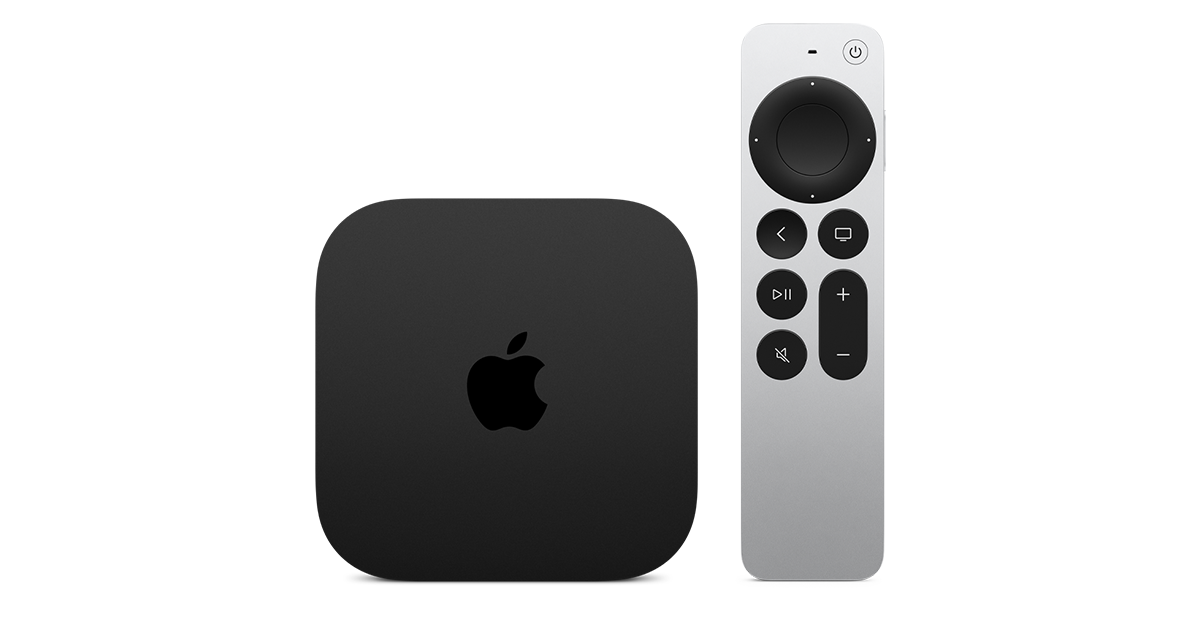
Apple has finally released their Apple TV 4K with built-in Siri and a microphone so it can respond to your queries even if you don't have the remote. It also increases in price, to $299. I had been planning on updating my current Apple TV 4K streamers, but that's $600 for the two of them, and that's a pass at this point.
At $299, it had better come with 256 GB of Storage, Gigabit (or better) Ethernet, the latest HDMI tech and standards, and one year of free Apple One. But it probably won't…
At $299, it had better come with 256 GB of Storage, Gigabit (or better) Ethernet, the latest HDMI tech and standards, and one year of free Apple One. But it probably won't…
Apple TV 4K
Apple TV 4K. New Siri AI and hands-free control. Stunning picture and immersive HomePod surround sound. Works with your Apple and smart home devices.
www.apple.com
14 Replies
·
184 views


 . apple's been making money off of software and not hardware for a while
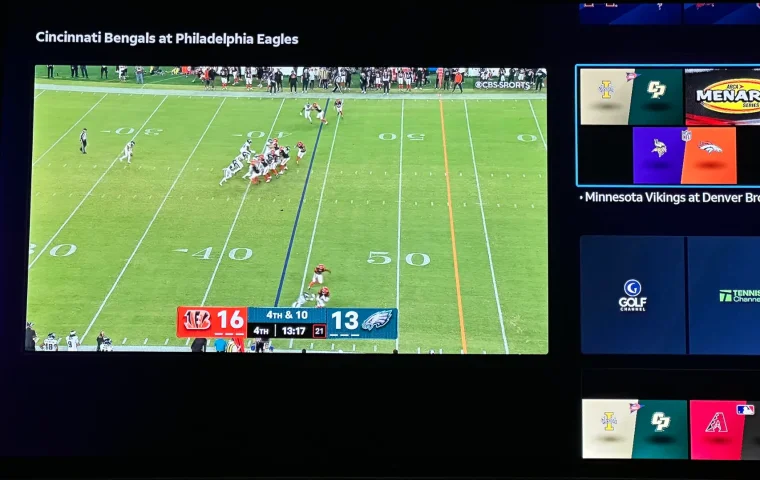
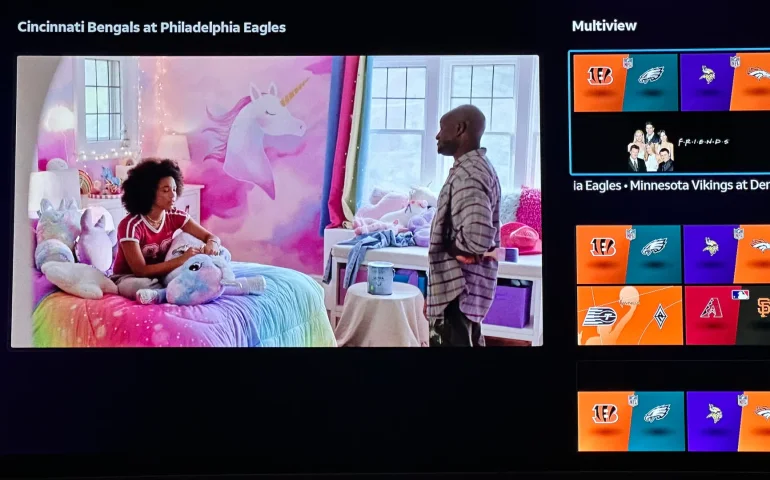
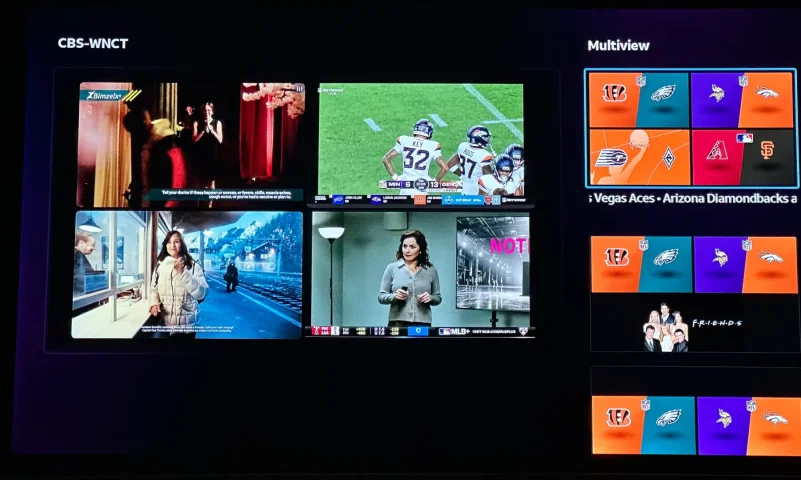
The new curated multiview is now live.
While on many of the sports channels and non sports channels there is a multi view option button. It will pull up a side bar with many different multi view options.
While on many of the sports channels and non sports channels there is a multi view option button. It will pull up a side bar with many different multi view options.
3 Replies
·
167 views


Supporting Founder
Really excited for this season with Kentucky having a new coach and some really exciting recruits. Probably won't last long, but here's hoping this season is great.
141 Replies
·
1360 views

